
Setting up 389 Directory Server
This is the first part of a series where I will share how I set up my local LDAP server that I use in my homelab, mainly for security testing.
In this part, I will cover the installation of a standalone replica.
Lab setup
| Hostname | Role | Distribution |
|---|---|---|
olympus |
Jumphost | Fedora 44 |
ldapsrv |
389 Directory Server | RHEL 9.7 |
generic |
LDAP client | RHEL 9.7 |
Hosts:
echo "192.168.133.160 ldap.guerzon.net" | sudo tee -a /etc/hosts
echo "192.168.133.160 ldapsrv" | sudo tee -a /etc/hosts
echo "192.168.133.156 generic" | sudo tee -a /etc/hosts
Install
# RHEL 9 prerequisites: install EPEL
subscription-manager repos --enable codeready-builder-for-rhel-9-$(arch)-rpms
dnf install https://dl.fedoraproject.org/pub/epel/epel-release-latest-9.noarch.rpm

# Install the package from EPEL
dnf install 389-ds-base

# configure firewalld
firewall-cmd --add-service=ldap --permanent
firewall-cmd --add-service=ldaps --permanent
firewall-cmd --reload
Commands
dsctl- manage the local instance. Stop, start, etcdsconf- manage local or remote instance configdsidm- manage content inside a backend, with idm focus
Configure
mkdir /opt/389-ds
chmod 0700 /opt/389-ds

cat << EOF > /opt/389-ds/instance.inf
[general]
config_version = 2

[slapd]
instance_name = homelab
root_dn = cn=manager
root_password = Sup3rSecureP@ssword
port = 3890
secure_port = 636
self_sign_cert = True

[backend-userroot]
sample_entries = yes
suffix = dc=guerzon,dc=net
require_index = yes
EOF

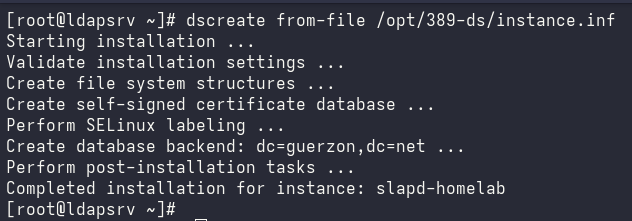
# create the instance
dscreate from-file /opt/389-ds/instance.inf
Local administration
Use local socket to interact with the instance w/o having to enter the manager password everytime.
cat << EOF > ~/.dsrc
[homelab]
uri = ldapi://%%2fvar%%2frun%%2fslapd-homelab.socket
basedn = dc=guerzon,dc=net
EOF
Some useful commands:
dsctl homelab status
systemctl status dirsrv@homelab

## config
ls -l /etc/dirsrv/slapd-homelab/

# change port
dsconf homelab config replace nsslapd-port=389
dsctl homelab restart

# change password of directory manager
dsconf homelab directory_manager password_change
Certificate
This section is to create CA, then a self-signed certificate that will be used as the server certificate and client certificate (for later).
Create a new root CA:
COUNTRY="PH"
LOCATION="Makati City"
ORGANIZATION="Homelab"

cd /opt/389-ds
openssl genrsa -out rootCA.key 4096
openssl req -x509 -new -nodes \
    -key rootCA.key -sha256 \
    -days 1825 \
    -subj "/C=${COUNTRY}/L=${LOCATION}/O=${ORGANIZATION}/CN=Homelab Root CA" \
    -out rootCA.pem
Config:
SAN="DNS:ldap.guerzon.net"
mkdir certs
cat /etc/pki/tls/openssl.cnf - <<-CONFIG > certs/ca-selfsign-ssl.cnf

[ san ]
subjectAltName="${SAN:-root@localhost.localdomain}"

[ cert_ext ]
keyUsage = digitalSignature, keyEncipherment
extendedKeyUsage = serverAuth, clientAuth
subjectAltName = ${SAN:-root@localhost.localdomain}
CONFIG
Generate the server key and certificate:
# generate key
openssl genrsa -out certs/ssl.key 4096

# generate csr
openssl req \
    -sha256 \
    -new \
    -key certs/ssl.key \
    -extensions cert_ext \
    -subj "/C=${COUNTRY}/L=${LOCATION}/O=${ORGANIZATION}/CN=ldap.guerzon.net" \
    -config certs/ca-selfsign-ssl.cnf \
    -out certs/ssl.csr

# sign cert (server and client certificate for mTLS)
openssl x509 -req -in certs/ssl.csr \
    -CA rootCA.pem -CAkey rootCA.key \
    -CAcreateserial \
    -days 2048 -sha256 -extensions cert_ext \
    -extfile certs/ca-selfsign-ssl.cnf \
    -out certs/ssl.crt

# verify
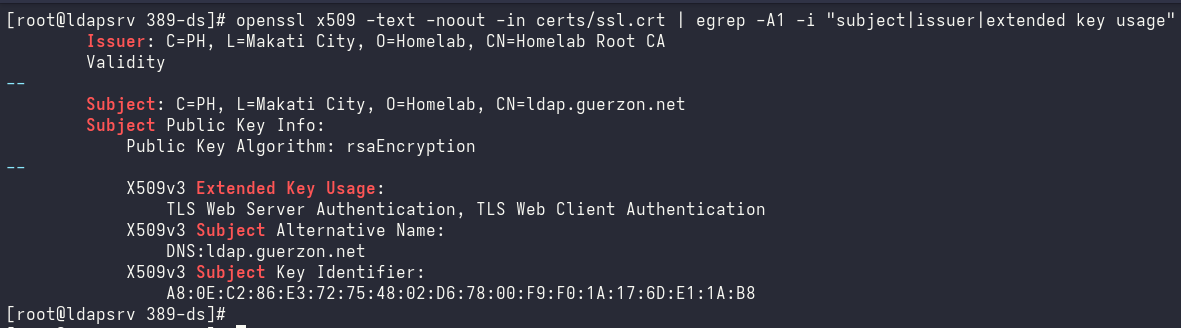
openssl x509 -text -noout -in certs/ssl.crt | egrep -A1 -i "subject|issuer|extended key usage"
Replace the current certificate;
# get the names and attributes of the default cert:
certutil -L -d /etc/dirsrv/slapd-homelab/ -f /etc/dirsrv/slapd-homelab/pwdfile.txt

# delete:
certutil -d /etc/dirsrv/slapd-homelab/ -n Server-Cert -f /etc/dirsrv/slapd-homelab/pwdfile.txt -D Server-Cert.crt
certutil -d /etc/dirsrv/slapd-homelab/ -n Self-Signed-CA -f /etc/dirsrv/slapd-homelab/pwdfile.txt -D Self-Signed-CA.pem

# add the new ssl certificate:
certutil -A -d /etc/dirsrv/slapd-homelab/ -n "Self-Signed-CA" -t "CT,," -i /opt/389-ds/rootCA.pem -f /etc/dirsrv/slapd-homelab/pwdfile.txt
certutil -A -d /etc/dirsrv/slapd-homelab/ -n "Server-Cert" -t ",," -i certs/ssl.crt -f /etc/dirsrv/slapd-homelab/pwdfile.txt

# convert from x509 to pkcs12:
openssl pkcs12 -export -out certs/ssl.pfx -inkey certs/ssl.key -in certs/ssl.crt -certfile /opt/389-ds/rootCA.pem

# add to the ssl database:
cat /etc/dirsrv/slapd-homelab/pin.txt | cut -d':' -f2-
pk12util -d /etc/dirsrv/slapd-homelab/ -i certs/ssl.pfx

# restart:
dsctl homelab restart
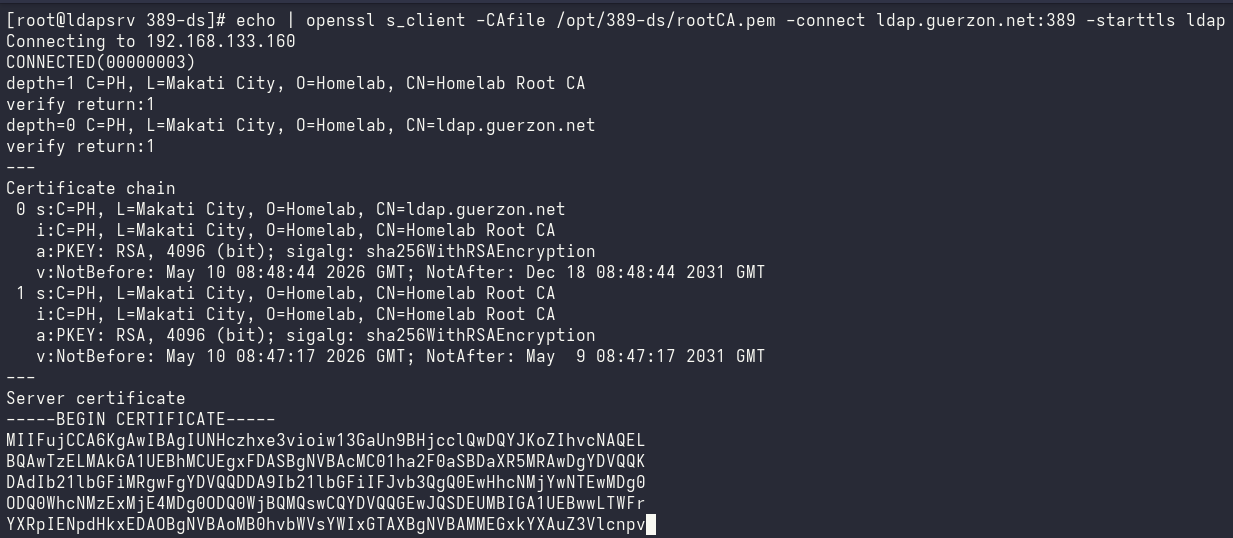
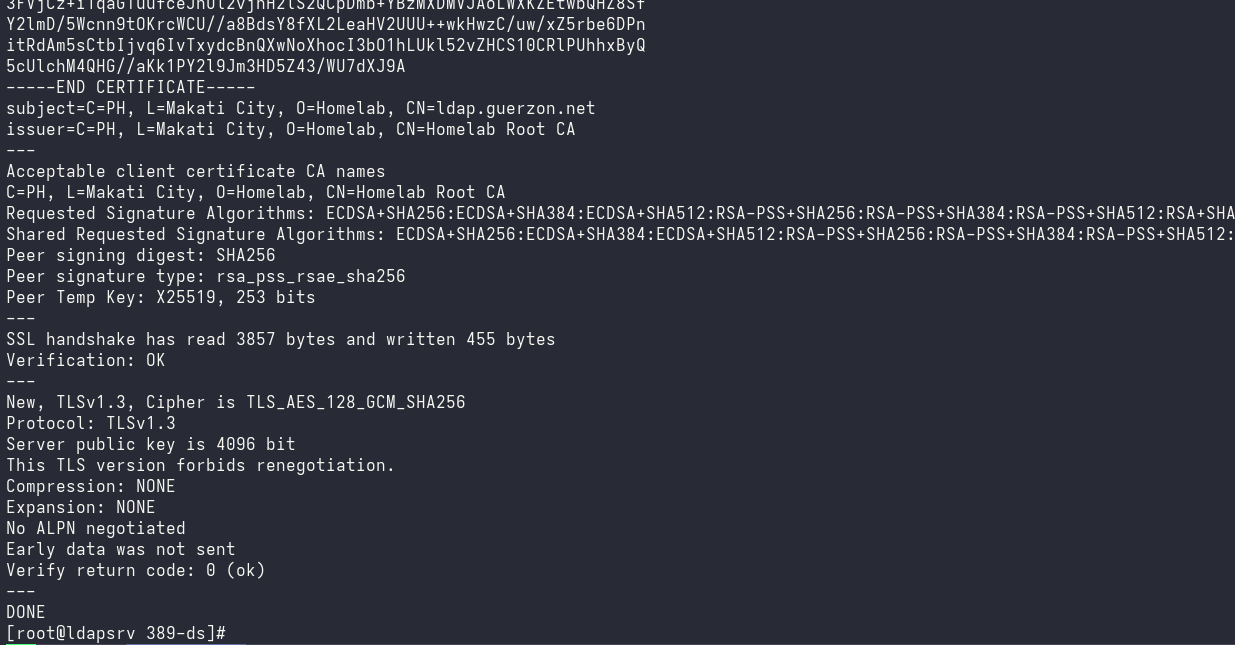
With openssl s_client, we can verify that the certificate works:
echo | openssl s_client -CAfile /opt/389-ds/rootCA.pem -connect ldap.guerzon.net:389 -starttls ldap
Administration
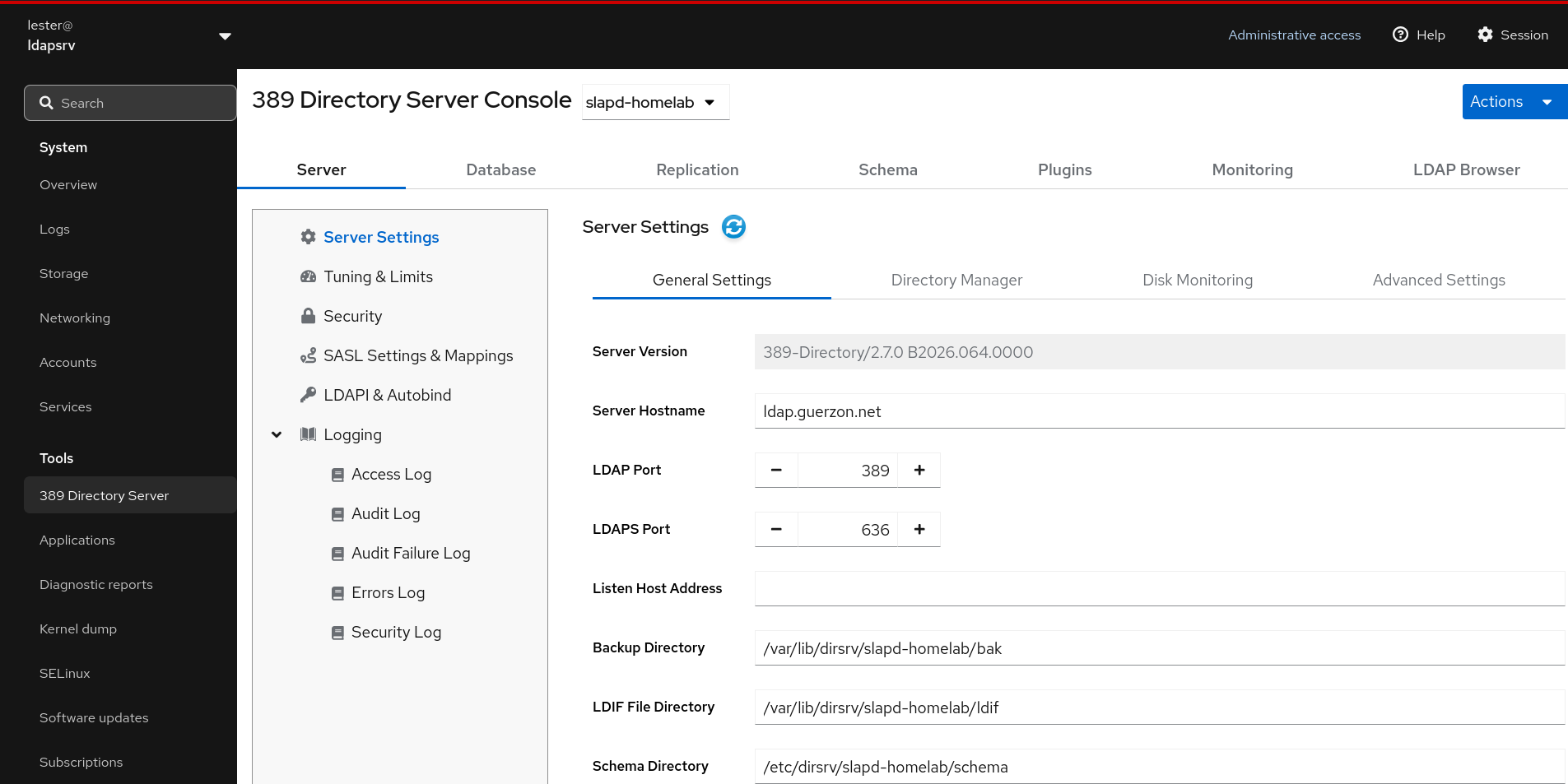
Cockpit UI
# enable the COPR repository to be able to install cockpit-389-ds:
dnf copr enable @389ds/389-directory-server
dnf install -y cockpit cockpit-389-ds
systemctl enable --now cockpit.socket
Cleanups
# remove the instance
dsctl homelab stop
dsctl homelab remove

# unwanted suffix
dsconf homelab backend delete testing --do-it
LDAP clients
Management from jumphost
I want to be able to run LDAP commands (such as ldapsearch) from my jumphost. So I have to configure the SSL certificate of the 389-ds server.
# login to olympus

# copy the root ca cert
scp ldapsrv:/opt/389-ds/rootCA.pem /tmp

# install ldap tools
sudo dnf install -y openldap-clients openssl-perl

# copy the root cert
sudo cp /tmp/rootCA.pem /etc/openldap/certs/

# hash it for openldap
sudo /usr/bin/c_rehash /etc/openldap/certs/
Also make sure to do the steps above on the generic machine because the certificate will be used by SSSD at a later section.
# ease of use
cat << EOF > ~/.ldaprc
URI ldaps://ldap.guerzon.net
BASE dc=guerzon,dc=net
TLS_CACERTDIR /etc/openldap/certs/
TLS_REQCERT demand
EOF
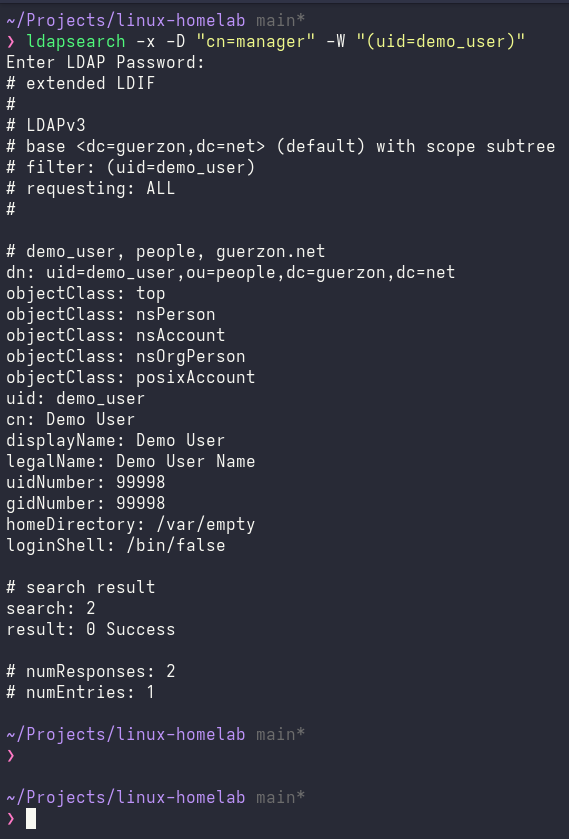
Test by querying the demo user that came with the installation:
ldapsearch -x -D "cn=manager" -W "(uid=demo_user)"
Read/only service account
Create a new service account with read-only access to everything. This will be used later.
In the 389-ds server:
dsidm homelab user create \
    --uid binduser \
    --uidNumber 1001 \
    --gidNumber 1001 \
    --homeDirectory /sbin/nologin \
    --cn binduser \
    --displayName binduser
dsidm homelab user get binduser
dsidm homelab account reset_password uid=binduser,ou=people,dc=guerzon,dc=net
We can also perform updates remotely. Run the following from the jumphost:
cat << EOF > binduser.ldif
dn: ou=people,dc=guerzon,dc=net
changetype: modify
add: aci
aci: (targetattr="*") (version 3.0; acl "Allow uid=binduser reading to everything";
 allow (search, read) userdn = "ldap:///uid=binduser,ou=people,dc=guerzon,dc=net";)
EOF

# apply
ldapmodify -D "cn=manager" -x -W -f binduser.ldif
User administration
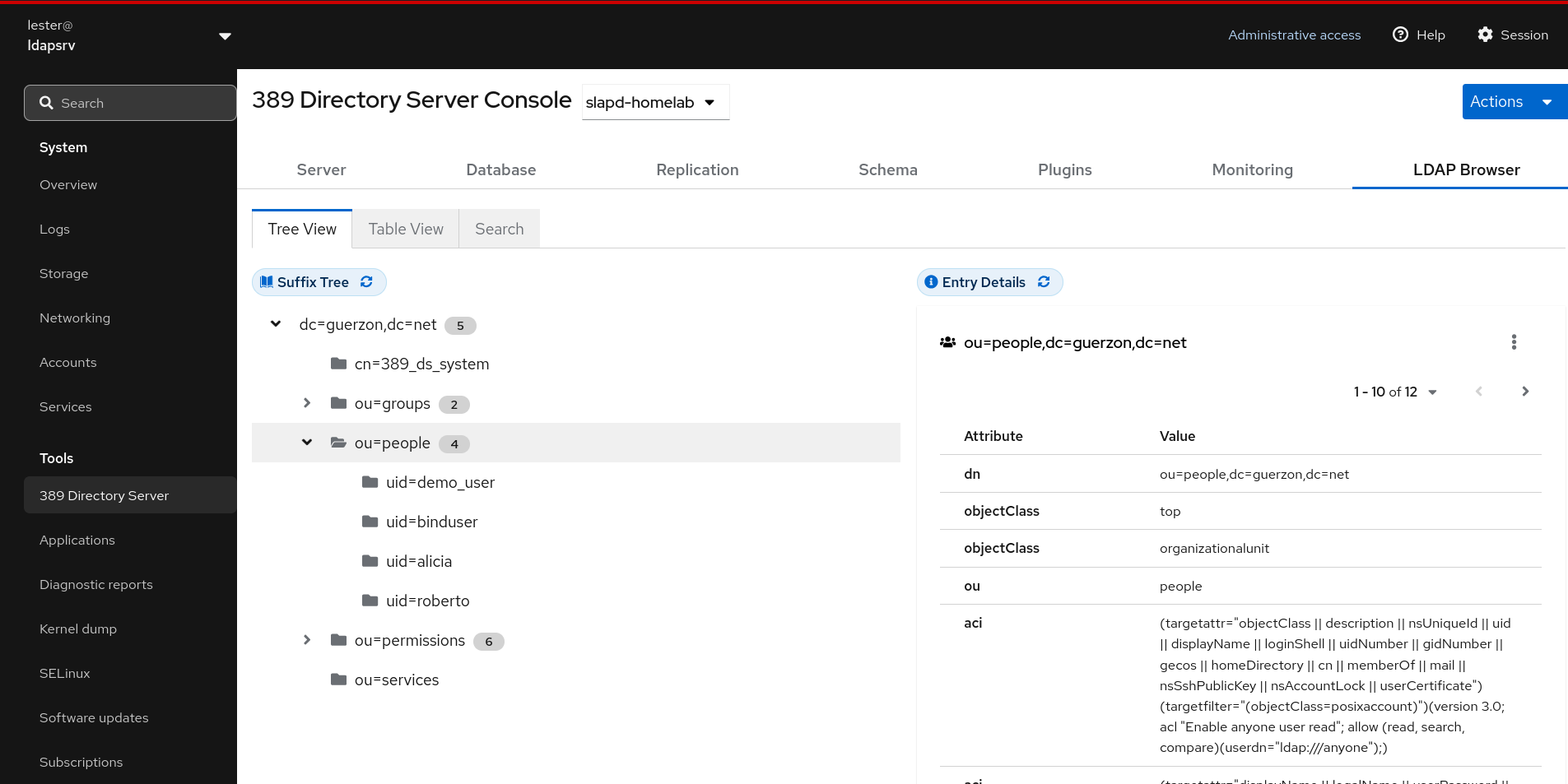
Add the following test users:
- Users:
aliciaandroberto - Group:
empresarios, of whichaliciais a member
Later, we will allow logins to the generic machine only for users who belong to the empresarios group.
# Create new users
dsidm homelab user create \
    --uid alicia --cn alicia --displayName Alicia \
    --uidNumber 1002 --gidNumber 1002 \
    --homeDirectory /home/alicia
dsidm homelab user create \
    --uid roberto --cn roberto --displayName Roberto \
    --uidNumber 1003 --gidNumber 1003 \
    --homeDirectory /home/roberto

# Change passwords
dsidm homelab account reset_password uid=alicia,ou=people,dc=guerzon,dc=net
dsidm homelab account reset_password uid=roberto,ou=people,dc=guerzon,dc=net

# Create empresores group
dsidm homelab group create --cn empresores --description "Business Owners"

# Add alicia to empresores
dsidm homelab group add_member empresores uid=alicia,ou=people,dc=guerzon,dc=net
dsidm homelab group members empresores
Take a look at LDAP browser:
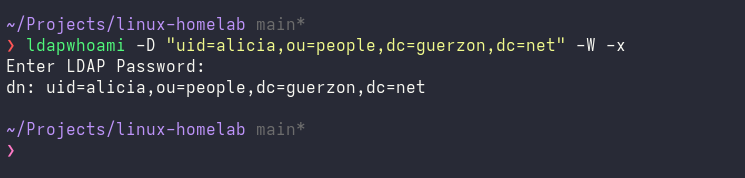
Try to login from the jumphost:
ldapwhoami -D "uid=alicia,ou=people,dc=guerzon,dc=net" -W -x
Plugins
# check status of memberOf (which makes lookups faster):
dsconf homelab plugin memberof status

# enable
dsconf homelab plugin memberof enable
dsctl homelab restart

# configure the plugin to search for all entries
dsconf homelab plugin memberof set --scope dc=guerzon,dc=net

# one-off task to mark alicia as a memberOf target (only needed since alice was created prior to enabling memberOf)
dsidm homelab user modify alicia add:objectclass:nsmemberOf
dsidm homelab user get alicia | grep memberOf

# run fixup, which will regenerate memberOf for everyone in the directory
dsconf homelab plugin memberof fixup dc=guerzon,dc=net
dsconf homelab plugin memberof fixup-status

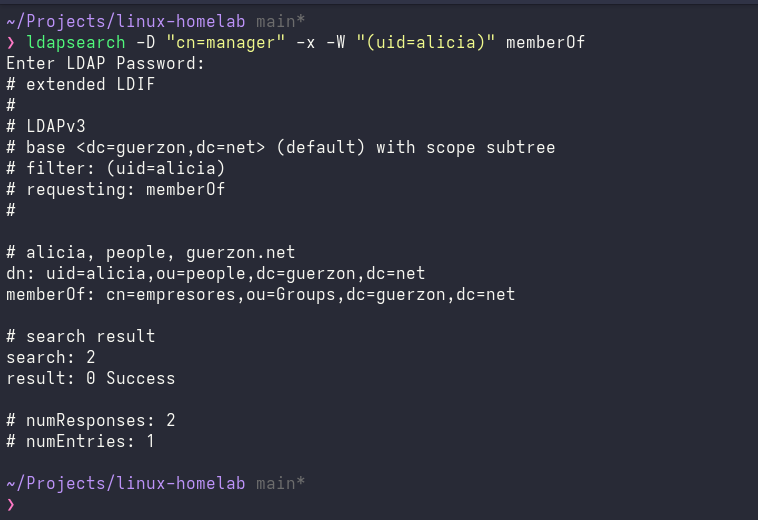
# verify alicia's membership:
ldapsearch -H ldaps://ldap.guerzon.net -x -D "cn=manager" -W "(uid=alicia)"
Useful commands for idm
dsidm homelab group remove_member \
    empresores uid=roberto,ou=people,dc=guerzon,dc=net
dsidm homelab user delete uid=roberto,ou=people,dc=guerzon,dc=net
LDAP client machine
Here, we configure generic to allow users to login using their LDAP credentials via SSH. The most common tool for this is sssd.
First, generate a config in the directory server:
# only members of empresores are allowed to login
dsidm homelab client_config sssd.conf empresores | tee /tmp/sssd.conf
Inspect the config. By default, this command allows access to the group empresores. Make modifications as necessary:
grep ldap_access_filter /tmp/sssd.conf
sed -i '/^ldap_uri/c\ldap_uri = ldaps:\/\/ldap.guerzon.net' /tmp/sssd.conf
chmod o+r /tmp/sssd.conf
Copy to generic:
scp ldapsrv:/tmp/sssd.conf generic:/tmp/
Configure SSSD
dnf install -y sssd
cp /tmp/sssd.conf /etc/sssd/
chmod 0600 /etc/sssd/sssd.conf
Check the existence of alicia and roberto, restart the sssd service, then check again:
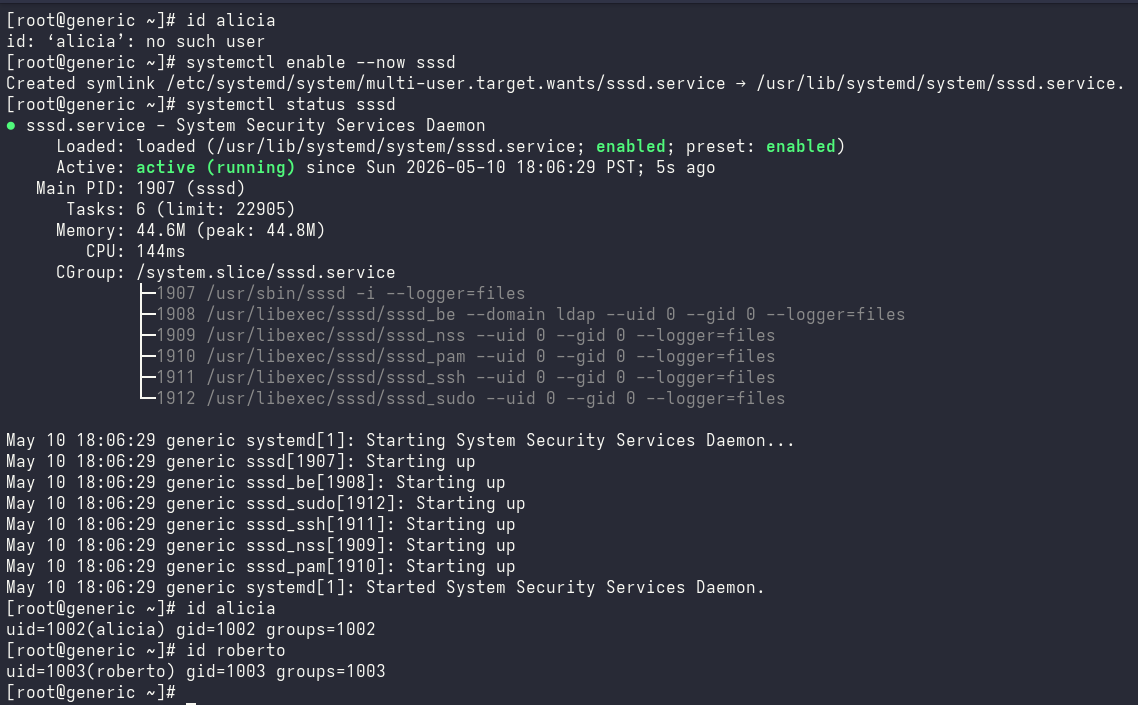
This means those users are now known to this client with the help of SSSD.
Now, we have to configure authentication using PAM.
dnf install -y authselect-compat oddjob-mkhomedir
systemctl enable --now oddjobd
authselect select sssd with-mkhomedir
Test
From the jumphost, test login to generic via SSH:

In the ldap client machine generic, we can see the logins in /var/log/secure:

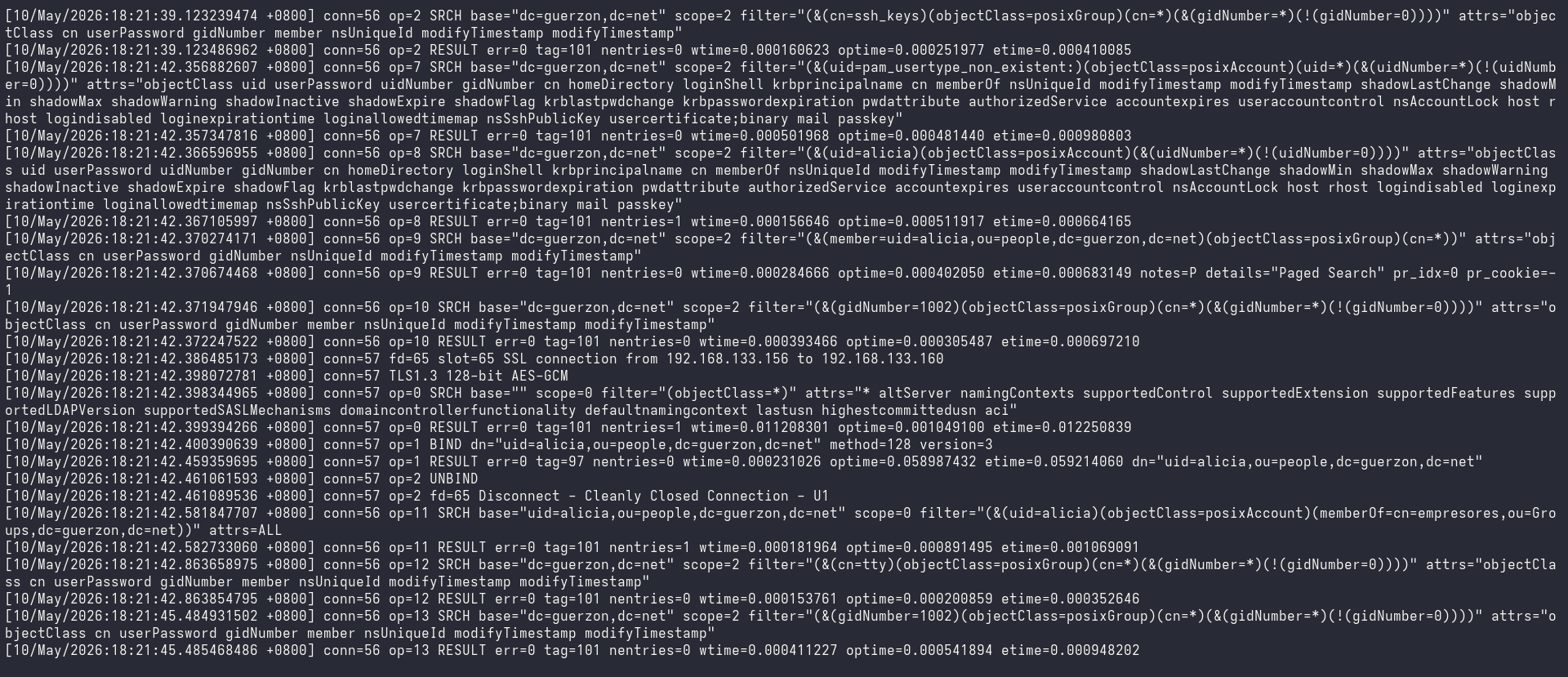
You will also see the queries happening in /var/log/dirsrv/slapd-homelab/access in ldapsrv:
What if we try to login as roberto, who is not supposed to have access to generic (since he’s not a member of the empresadores group)?
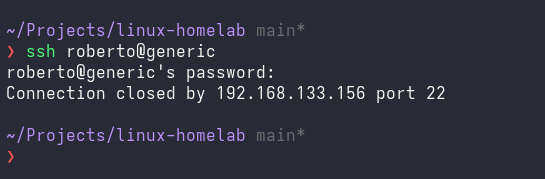
The command quickly returns after entering the password. And if you look at /var/log/secure again:

As you can see in the error, the authentication succeeds (ssh auth PAM module) but is soon denied by ssh account PAM module.
Conclusion
Now you have a working LDAP server running 389 Directory Server, and an LDAP client that allows user login using their LDAP credentials!